
Dashboard
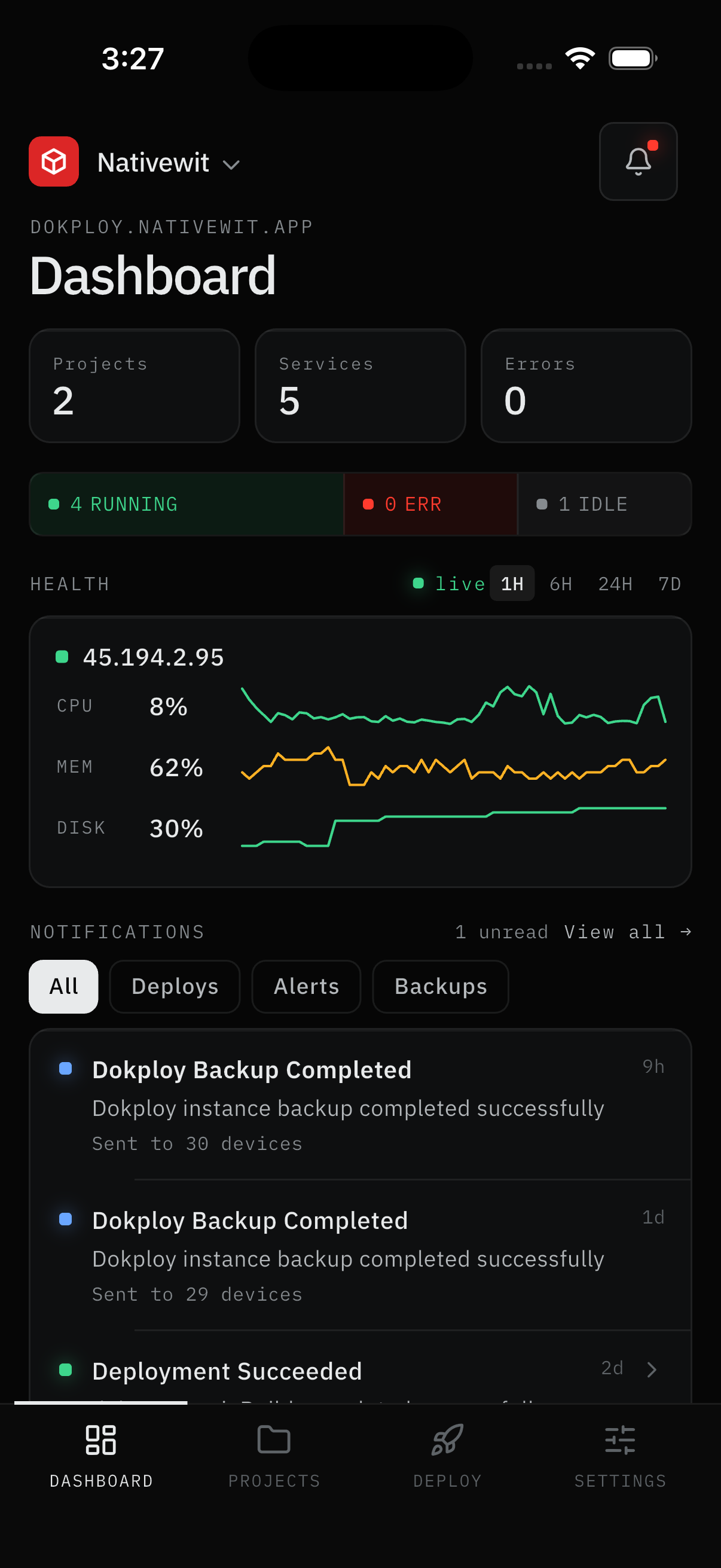
Purpose
The Dashboard is the first screen after sign-in: an at-a-glance overview of projects, server health, live deployments, and anything that needs attention. Pull down anywhere to refresh.
User Flow
Read the top bar
Step 1: Check workspace and notifications
- Your workspace name sits top-left with a dropdown - tap it to switch servers. The server address shows beneath in the eyebrow.
- The bell top-right carries a dot when notifications are unread - tap it to open the history inbox.
Result:
- You know which server context you're in and whether anything arrived.
Read stats and health
Step 2: Scan the cards, strip, and graphs
- Three stat cards show Projects, Services, and Errors (things needing attention). Tap a card to jump to that list.
- The status strip counts services by state: N RUNNING, N ERR, N IDLE.
- The Health card shows one server at a time (IP or hostname) with live CPU, MEM, DISK percentages and sparkline graphs. Range chips above switch between live, 1H, 6H, 24H, 7D.
Result:
- You know totals, load right now, and where the problems are.
Note:
- Before a metrics token exists, a setup banner sits above the health card. Admins get a Set up button there that opens the token screen (Servers & Metrics). Graphs with no data yet say so explicitly instead of showing blanks.
Follow deployments, risks, and inbox
Step 3: Check what's moving
- Active deployments shows anything deploying right now, with elapsed time. Tap a row to watch its logs live.
- Recent deployments lists finished runs across all projects. Tap any row for details or logs.
- At-risk pulls aside services in error or failing health checks. If you're checking quickly, start here.
- The Notifications feed previews the inbox on the dashboard itself: unread count, a View all jump, chips (All, Deploys, Alerts, Backups), and rows with colored dots and relative times. Tap any row to open what it's about.
Result:
- Live progress, recent outcomes, risks, and the latest pushes - without leaving the screen.
Screens Involved
- Dashboard (workspace switcher, stats, status strip, health graphs, deployments, at-risk, notifications feed)
- Notification history (via bell or View all)
- Servers, Projects, Deployments, Logs (via taps)
Inputs
User Inputs:
- Pull to refresh
- Health range selection (live / 1H / 6H / 24H / 7D)
- Notification filter chips
- Taps on cards, rows, bell, workspace switcher
Outputs
- Refreshed stats, health, queue, projects, and inbox preview
- Navigation to the tapped server, service, deployment, log, inbox, or workspace
Error Handling and Edge Cases
| Scenario | System Behavior |
|---|---|
| "No projects" | Your account isn't added to any projects in this organization - ask a Dokploy admin |
| Setup banner over health | Metrics token missing - admins tap Set up, others wait for an admin |
| Queue stays at 0 | Nothing is deploying - normal when quiet |
| Sign-in expired | App returns to Setup - sign in again |