
Workspaces
Purpose
A workspace is one Dokploy server connection - its URL, your login, and everything under it. If you manage several Dokploy servers, add each as a workspace and switch between them without signing in again. You can keep many workspaces even on Free; each plan caps the total (at most 50 per account), and over-limit adds are refused - Pro raises the cap.
User Flow
Add a workspace
Step 1: Open the switcher and add
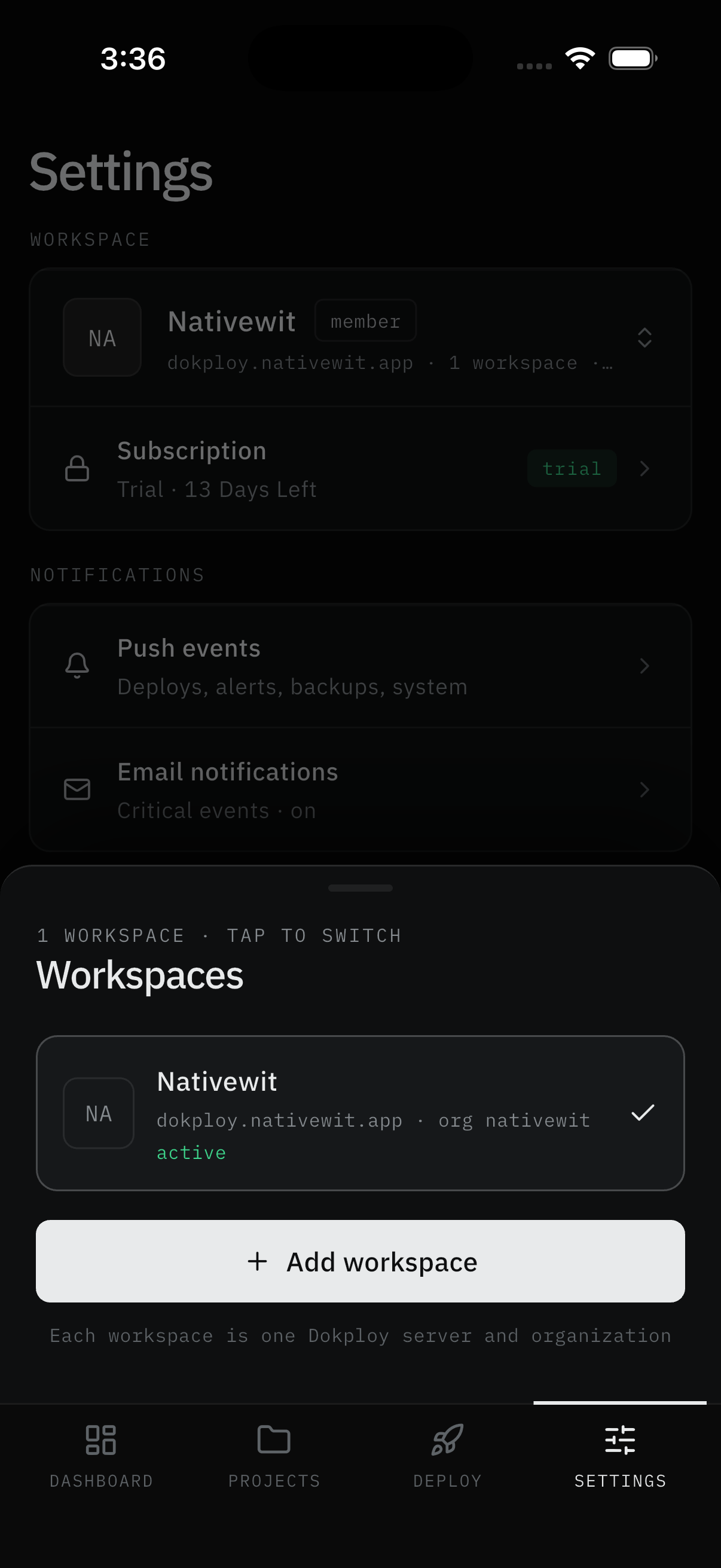
- Open Settings and tap your current workspace at the top. The sheet reads
1 WORKSPACE · TAP TO SWITCH, lists each workspace with its server, org, a checkmark, and anactivetag, and notes each workspace is one Dokploy server and organization. - Tap Add workspace and go through Setup again with the new server's address and login.
Result:
- The new workspace becomes active. Your other workspaces stay signed in.
Switch workspaces
Step 2: Pick another server
- Open Settings, tap the workspace row, and pick another server in the sheet.
- Confirm Switch when asked.
Result:
- Everything reloads for that server - Dashboard, projects, deployments, notification history. No re-login, no waiting on passwords.
Log out of a workspace
Step 3: Remove a workspace from this device
- In the switcher sheet, the active workspace offers Log out (the confirmation names it).
- Confirm.
Result:
- The workspace leaves this device only. Nothing changes on your server, and other workspaces stay signed in. To wipe everything, log each workspace out in turn.
Note:
- Organizations are separate from workspaces: if one login spans several organizations on a server, you pick one each time you sign in. To change it, sign out and sign back in.
Screens Involved
- Settings (workspace row at the top)
- Workspace switcher sheet (list, Add, Switch/Log out confirms)
- Setup in adding mode (for Add)
Inputs
User Inputs:
- New server address, email, password (Add flow)
- Workspace selection, Switch/Log out confirms
Outputs
- New workspace connected and active, or active workspace switched
- Workspace removed from this device (Log out)
Error Handling and Edge Cases
| Scenario | System Behavior |
|---|---|
| No session for a workspace | Switch fails with an error - sign in to that server again |
| Sign-in expired mid-switch | App returns to Setup - sign in again |