
Terminal
Purpose
A real shell inside your containers - check a file, tail a log, run a migration - without opening a laptop. Needs Pro; which containers you can open follows your Dokploy access. Not admin-gated: members open shells in the containers they may already see.
Roles
- Pro - full shell access within your Dokploy scope: admins see every container, members see the containers in their projects. A container outside your scope refuses with the server's message.
- Free - upgrade prompt instead of a shell.
User Flow
Open a shell
Step 1: Pick target, shell, container
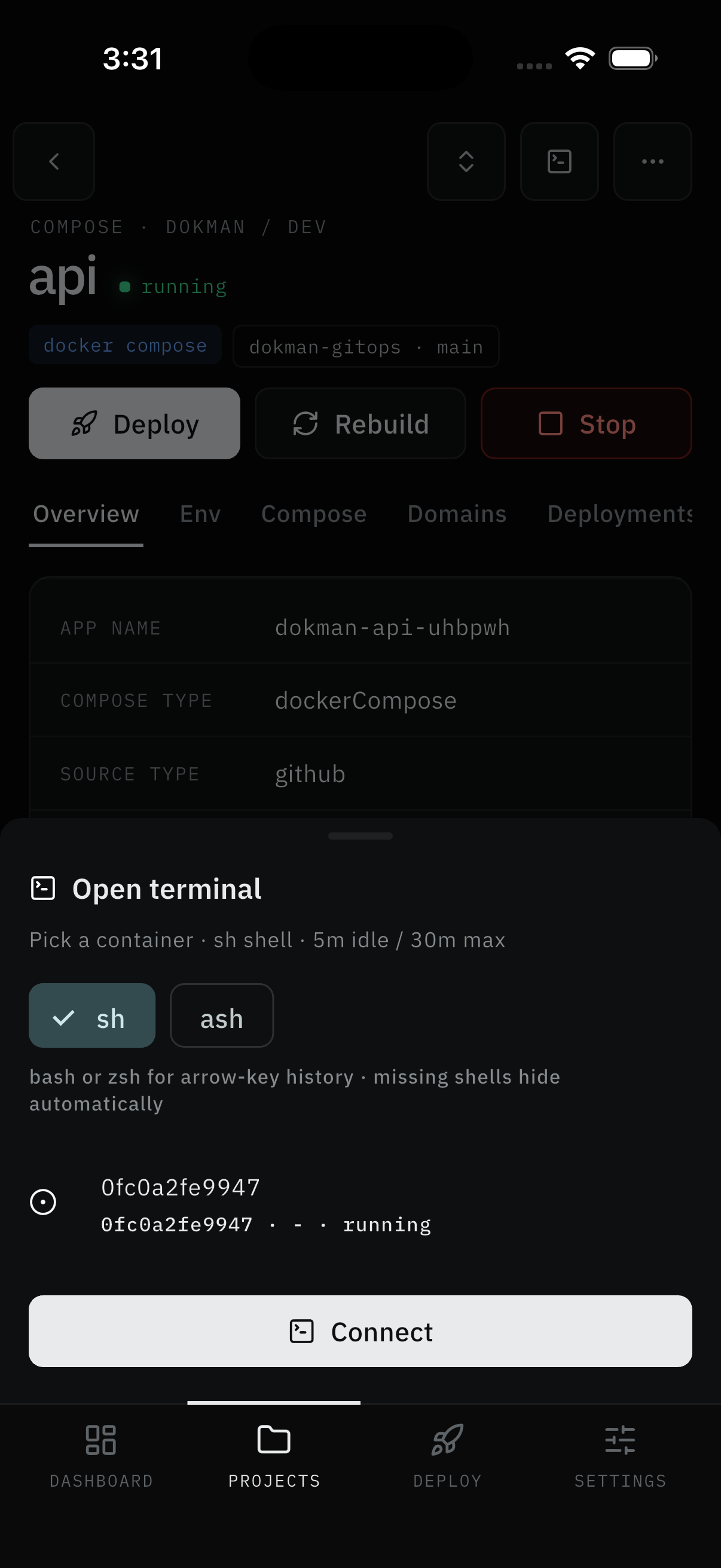
- Open any App, Compose stack, or Server and tap the Terminal icon.
- The Open terminal sheet states the terms up front (
Pick a container · sh shell · 5m idle / 30m max). Pick a shell chip (sh,ash, …) -bashorzshgive arrow-key history, and missing shells hide automatically. - Pick the container row and tap Connect.
Result:
- The shell opens on that container.
Work and leave
Step 2: Run commands, then disconnect
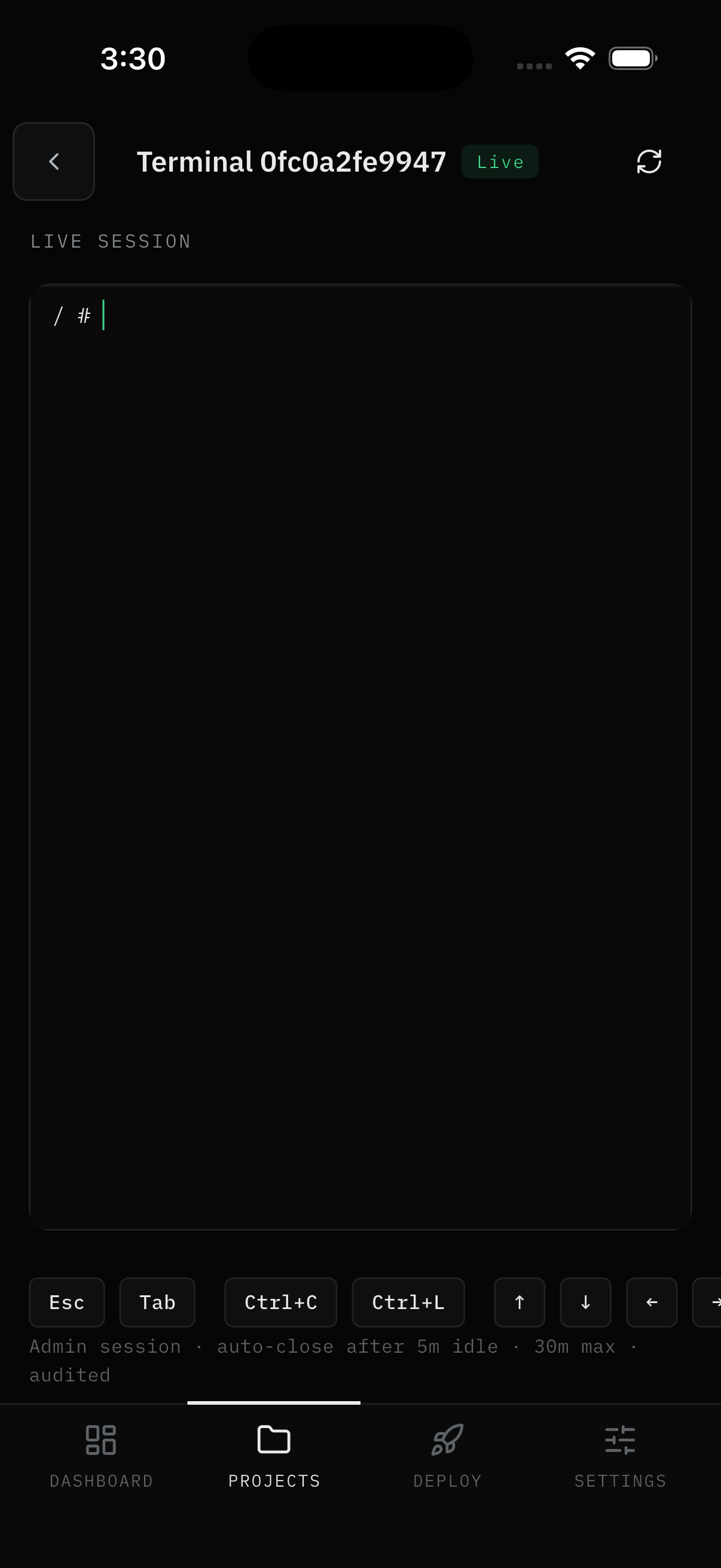
- The title reads
Terminal <short-id>with a Live badge; the prompt waits (/ #). A key bar offersEsc,Tab,Ctrl+C,Ctrl+L, and arrows. The footer restates the terms: admin session, auto-close after 5 idle minutes, 30 max, audited. - Type commands as normal. Leaving asks you to Disconnect; idle and max timers close for you - reconnect to continue either way.
Result:
- The task gets done from your phone; the session always ends cleanly.
Note:
- Only one live session per user and workspace. Opening a new one replaces the old.
- An upgrade prompt means no Pro subscription; an access message means that container is outside your Dokploy scope - ask an admin for project access.
Screens Involved
- Terminal icon (App / Compose / Server detail)
- Open terminal sheet (shell chips, container rows, Connect)
- Terminal session (title + Live badge, prompt, key bar, terms footer, Disconnect confirm)
Inputs
User Inputs:
- Shell selection, container selection, Connect
- Shell commands, key-bar keys
- Disconnect confirm
Outputs
- Live shell session in the container you picked (audited per the footer note)
Error Handling and Edge Cases
| Scenario | System Behavior |
|---|---|
| Upgrade prompt instead of shell | Not on Pro - see Subscription |
| Access message instead of shell | Container outside your scope - ask an admin for project access |
| "Disconnected after 5m idle" | Reconnect to continue |
| "Max 30m session reached" | Reconnect to continue |
| New session opened elsewhere | Old session is replaced |